

Tags, Auto-Tagging & Collections
Linkwise gives you two complementary ways to organize your library:
- Collections decide where a link lives - a link sits in exactly one collection (or none).
- Tags describe what a link is about - a link can carry many tags, and the same tag is shared across every link that uses it.
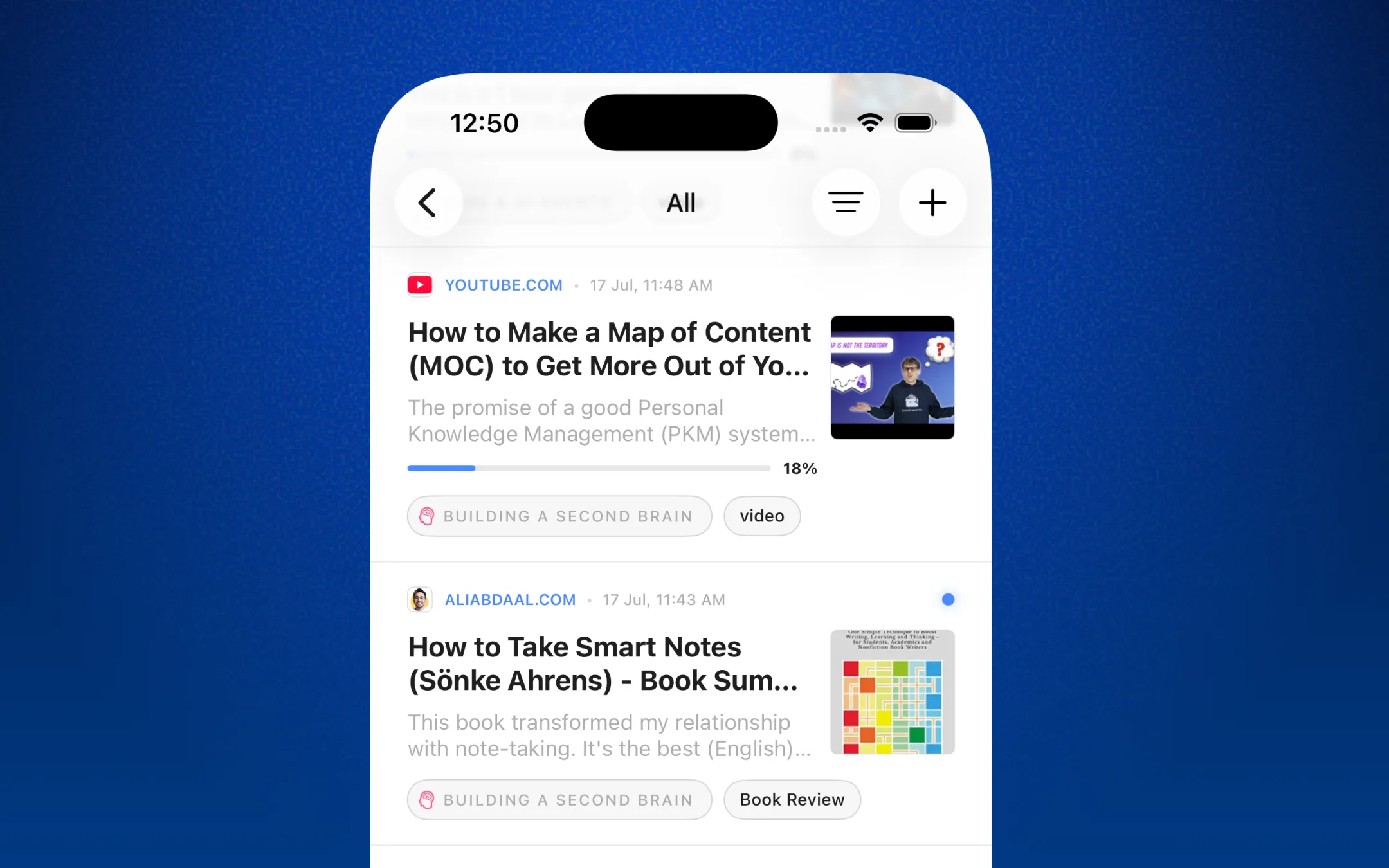
What are tags?
A tag is a simple label - like research, recipes, to-read, or work - that you attach to links.
- A link can have multiple tags (up to 15 per link). A single article can be research and ai and to-read at once.
- Tags are cross-cutting. The same tag spans your whole library - archived and un-archived links alike - so recipes gathers everything you've ever labeled that way, wherever it lives.
- Tags are reusable. Once you create research, it's available to apply to any other link.
- Tags are private to you. Every tag belongs to your account; only you can see and apply your tags.
Tags vs. Collections
| Tags | Collections | |
|---|---|---|
| How many per link? | Many (up to 15) | One home ( or none) |
| Best for | Cross-cuting themes (ai, to-read) | Structured folder ("Project X", "Recipes") |
| Reused across links? | Yes | Yes |
| Can be shared publicly? | No | Yes |
Use collections for where a link belongs, and tags for what a link is about. They work side by side - a link can be filed in a Newsletters collection while also tagged ai and to-read.
Working with tags manually
Add tags to a link
- Open a link (or the add-link screen when saving something new).
- Tap the tag field / Add tags.
- Pick existing tags from the list, or type a new name to create one on the spot.
- Save. The tags appear as colored chips on the link.
Remove a tag from a link Open the link's tag editor and deselect the tag, or tap the chip's remove control. This only removes the tag from that link - the tag itself still exists for other links.
Filter by tag Tap a tag chip, or open the Tags section in your Library, to see every link carrying that tag. Each tag shows a live count of how many links use it. Because a tag lane is cross-cutting, it includes archived links too.
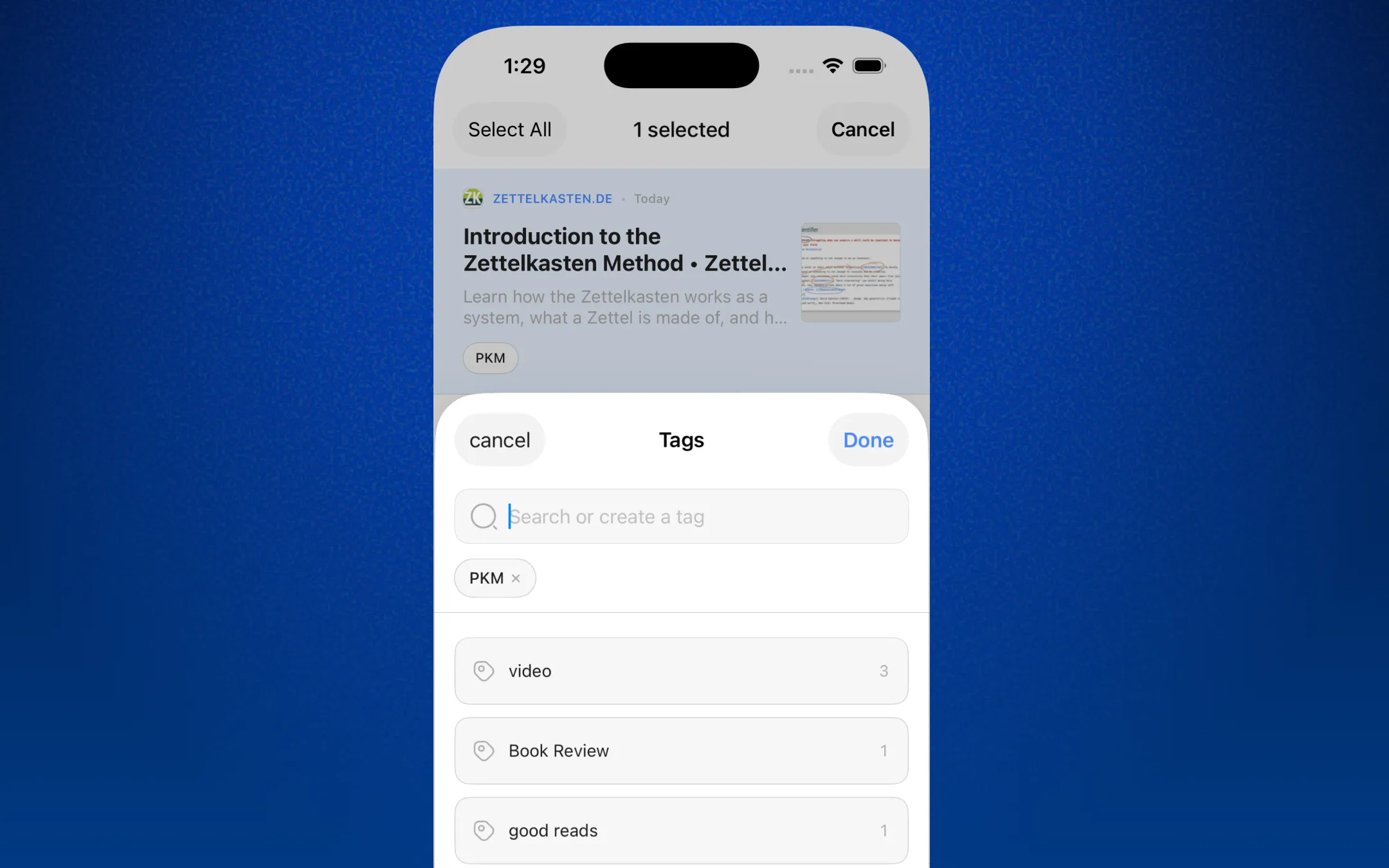
Auto-tagging rules: tag new links automatically
| Rule (domain contains..) | Tag applied | Result |
|---|---|---|
| arxiv.org | research | Every arXiv paper you save is tagged research |
| youtube.com | watch-later | Saved videos land under watch-later |
| nytimes.com | news | NYT articles auto-tag as news |
| github.com | code | Repos you save become code |
How the match works
- Matching is on the link's website domain (the host) - the part like www.nytimes.com. Linkwise checks whether your text appears anywhere in the host as a case-insensitive substring. So a rule of nytimes.com matches www.nytimes.com/2026/....
- The match looks only at the domain, not the rest of the address. A rule of github.com matches links hosted on github.com, but it will not match a link like example.com/best-github-repos - because github.com isn't in that link's host.
- You don't need http:// or www. - just the meaningful part of the domain (e.g. linkwise.app or substack.com).
- Multiple rules can match one link. If a link matches several rules, it gets all the corresponding tags (still capped at 15 per link).
- Auto-tagging adds tags - it never removes tags you set yourself, and it won't duplicate a tag a link already has.
Setting up an auto-tagging rule
- Go to Settings → Auto-tagging.
-
Under Add a rule:
- In Domain contains, type the text to match (e.g. substack.com).
- Tap Select tag and choose the tag to apply. (Pick from your existing tags.)
- Tap Add rule.
Your rule now appears under Your rules, showing the tag and the domain pattern it watches for.
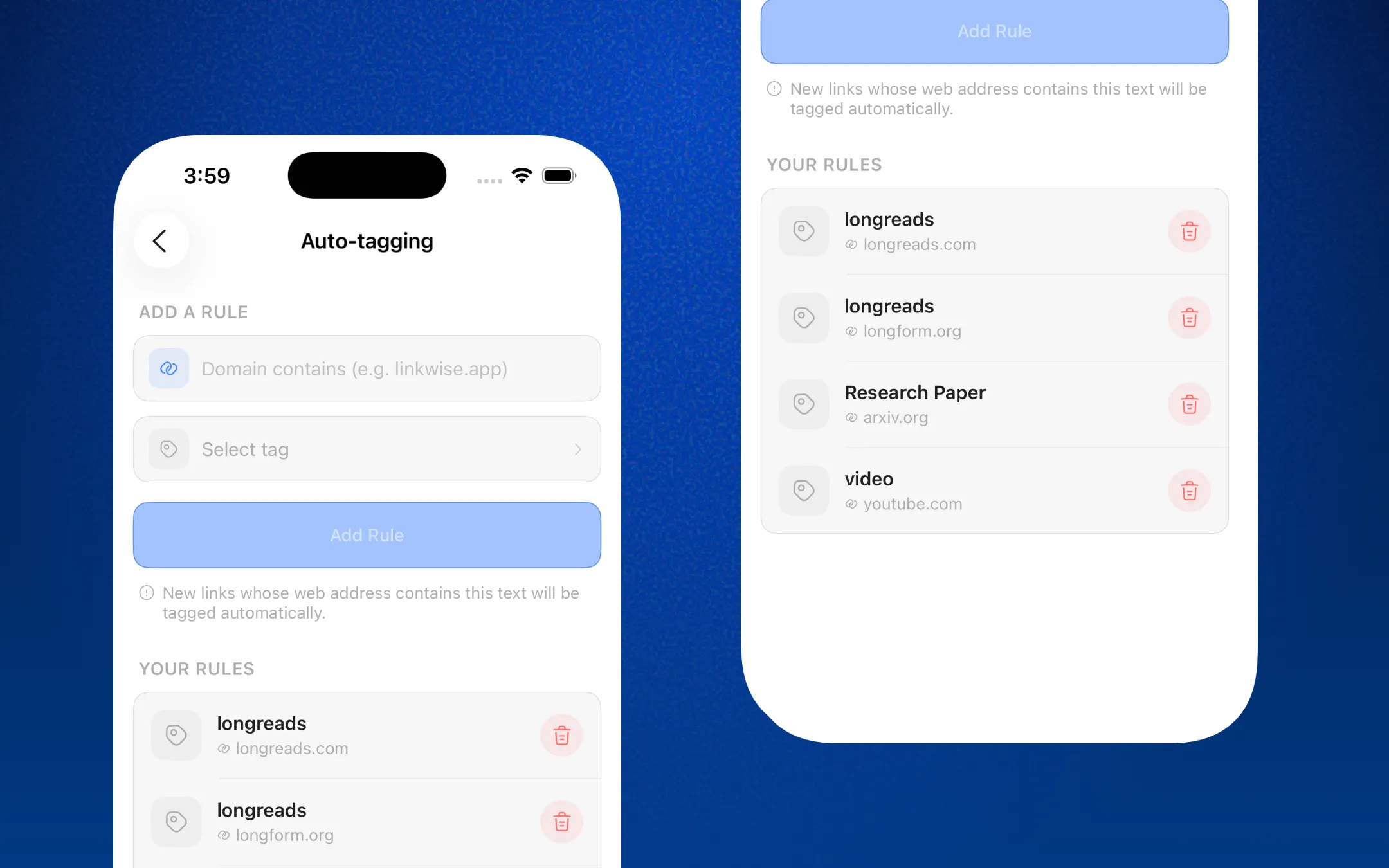
Managing your rules
- All active rules are listed under Your rules in the same screen.
- Delete a rule: tap the trash icon next to it and confirm. New links will no longer be auto-tagged for that domain. (Deleting a rule does not remove the tag from links it already tagged - those stay as they are.)
Where auto-tagging applies
This is what makes rules powerful - they work no matter how a link enters Linkwise. Under the hood, Linkwise applies your rules in two places so nothing slips through:
- Saving inside the app - the app checks your rules the moment you paste or add a URL, so matching tags appear pre-selected on the add-link screen. You can see and adjust them before saving.
- The Share extension - links shared from Safari or other apps are tagged automatically in the background after processing.
- Save-by-email - links you email into Linkwise are auto-tagged.
- Bulk imports - importing bookmarks applies your rules across the whole batch.
For in-app saves you're always in control and can remove or add more tags before saving. For everything else (Share extension, email, imports), the tagging happens automatically after the link is processed on the server, so you'll simply see the right tags already on the link. The two paths are coordinated so a link is never double-tagged.
Collections
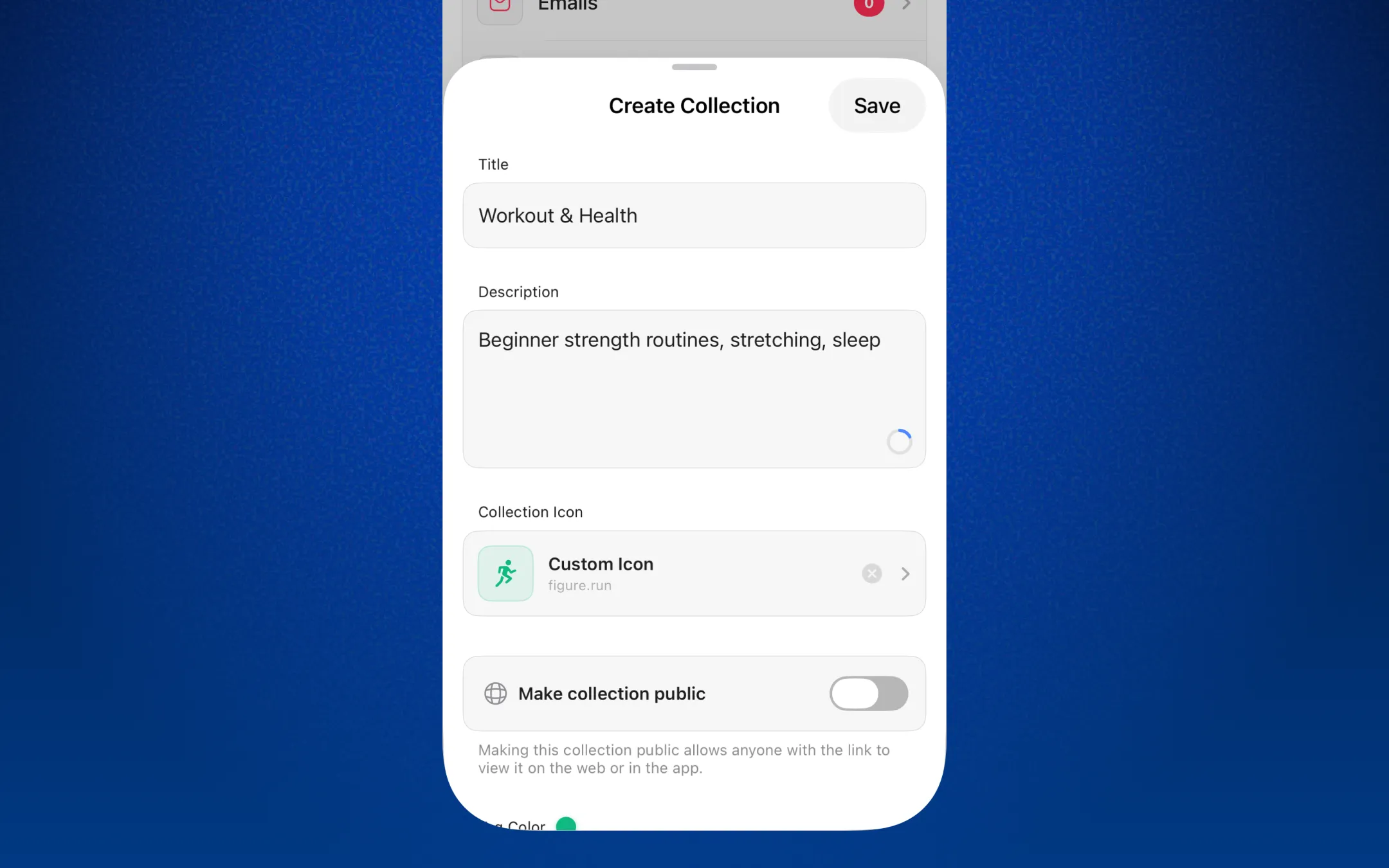
A collection is a folder for your links. Unlike tags, a link lives in exactly one collection at a time (or none - see Unsorted below). Collections are best for structured, project-style grouping: Recipes, Project X, Reading for Q3, Newsletters.
Each collection has:
- A name and optional description
- A color and an icon to make it recognizable at a glance
- A stack of the most recent link favicons shown on its card, plus a live link count
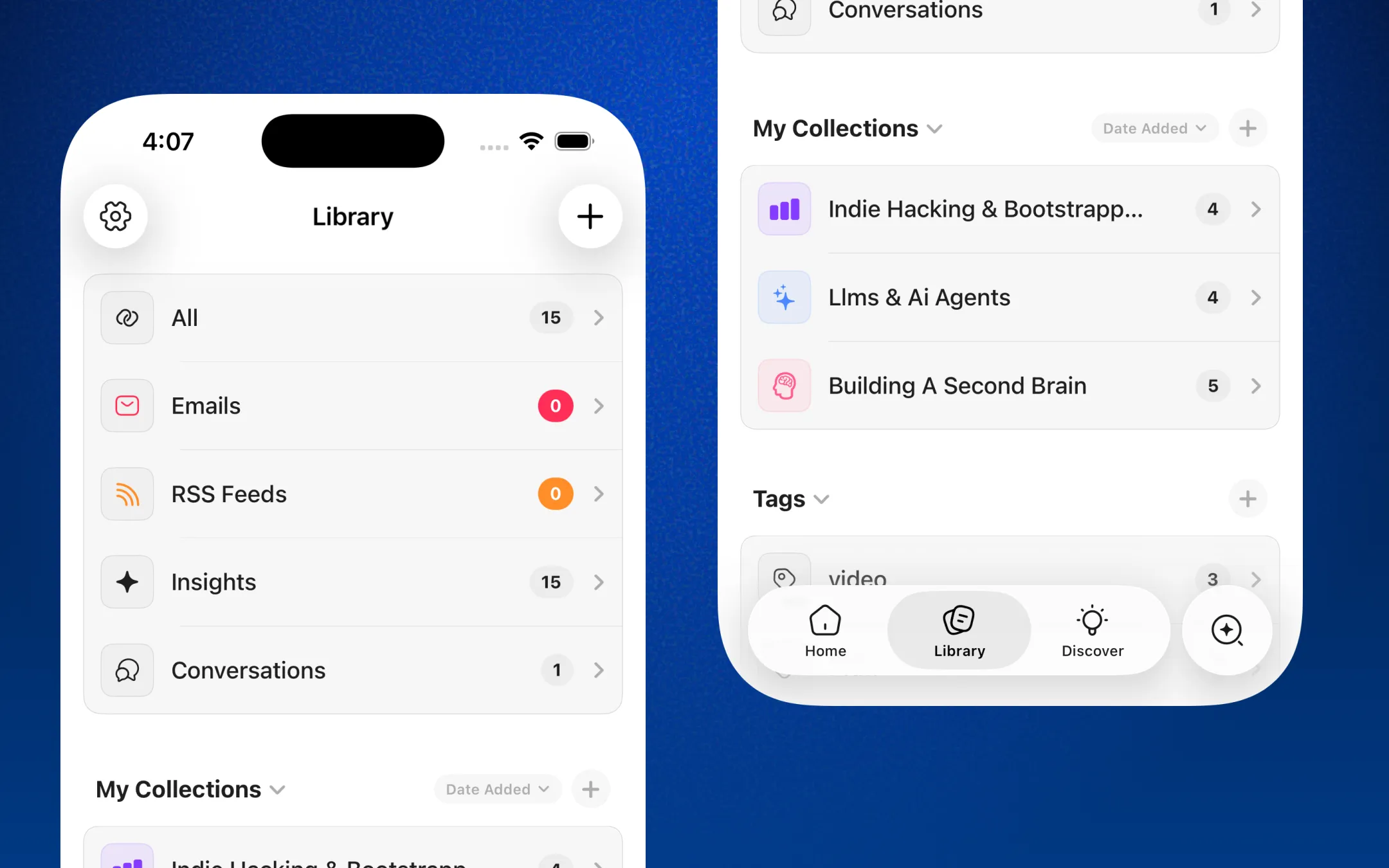
Creating & filling collections
- In the Library, tap New Collection.
- Give it a name, pick a color and an icon, and optionally add a description.
- Add links to it by moving/assigning a link to the collection from the link's menu, or by choosing the collection when you save a new link.
Unsorted links. A link doesn't have to be in a collection. Links with no collection show up in the Unsorted lane, so you always have a place to find things you haven't filed yet.
Pinning collection
Pin the collections you use most and they float to the top of your Library, ahead of everything else (pinned collections sort first, most-recently-pinned first). Tap the pin control on a collection to toggle it.
Sharing a collection publicly
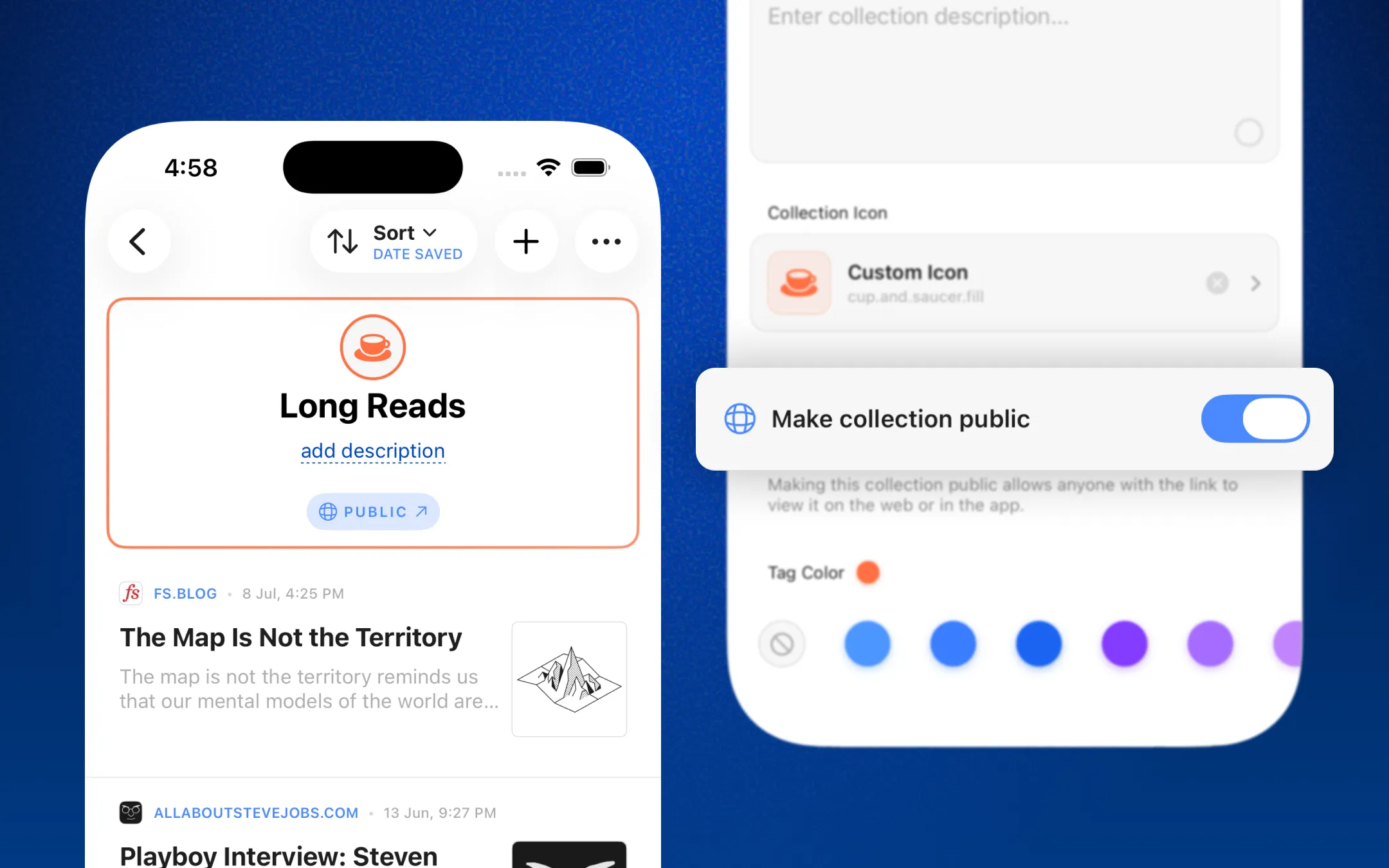
Collections can be made public to share a curated reading list with anyone:
- Turn on Public for a collection to generate a shareable link.
- Anyone with the link can view the collection's links — no account needed to read.
- Other Linkwise users can save a shared collection into their own library, so great lists can spread.
- Turn Public back off at any time to stop sharing.
Plan limits & locked collections
Collections are subject to your subscription plan's collection allowance:
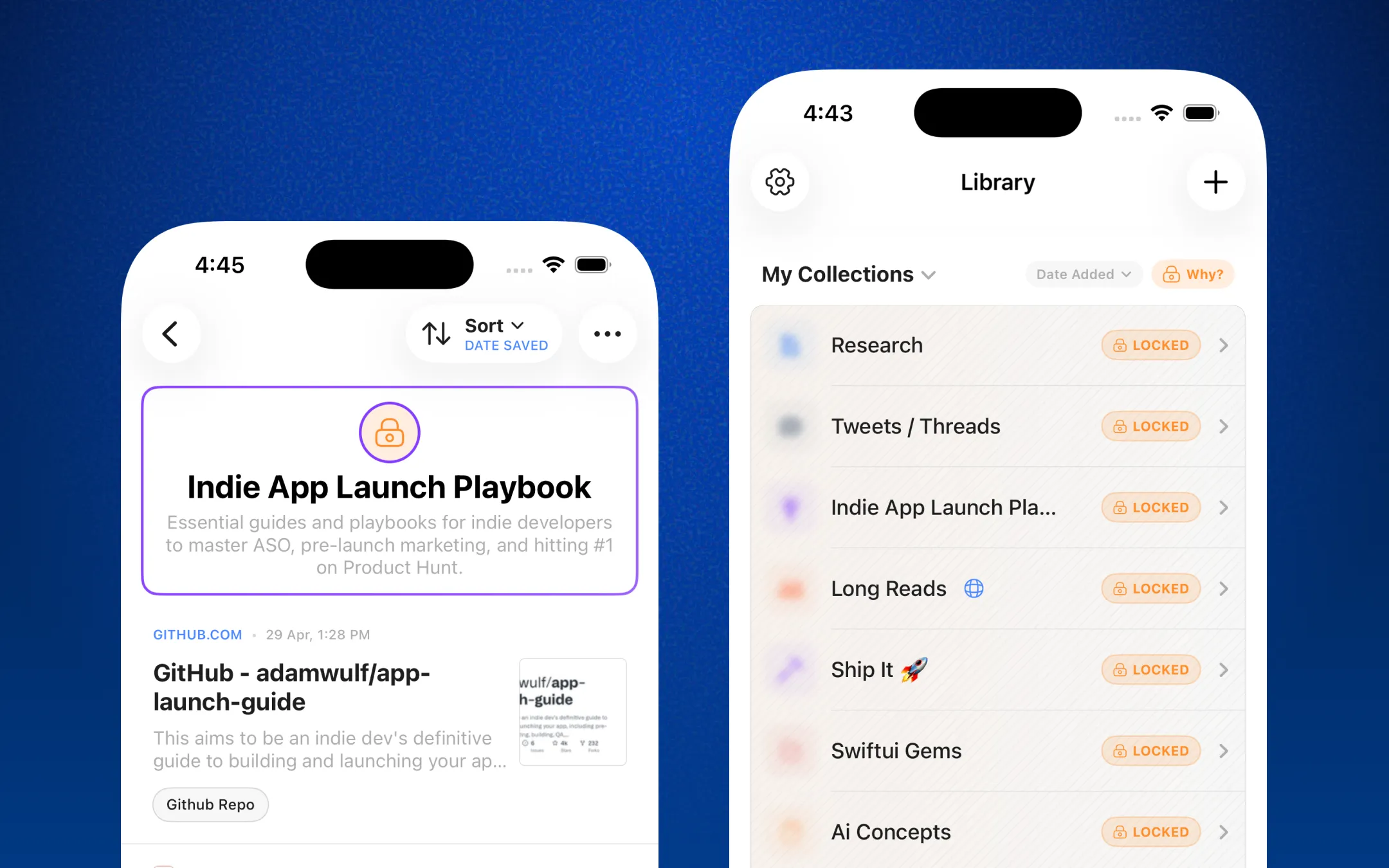
- Your plan grants a certain number of active collections. Your oldest collections stay unlocked, any beyond your plan's limit become locked.
- A locked collection is read-only - you can still see the links already in it, but you can't add new links to it until you free up space or upgrade.
- Upgrading unlocks everything - moving to a plan with a higher (or unlimited) allowance instantly unlocks previously locked collections.
- Locks recalculate automatically as you create or delete collections, so you never have to manage this by hand.
How collections power other features
Because a collection is a clean, bounded set of links, Linkwise reuses it elsewhere:
- Scoped AI chat / search - you can ask questions against a single collection, and Linkwise searches only that collection's content.
- Sync integrations - collections map to folders/sections when you sync your library out to Obsidian or Notion.
Frequently asked questions
Do rules re-tag links I saved before creating the rule?
No. Rules apply to links added after the rule exists. Older links keep whatever tags they already have.
Will a rule for github.com tag a link that just mentions GitHub in its address?
No. Matching looks only at the link's domain (host), so github.com matches links hosted on GitHub, not a link like example.com/awesome-github-list.
What if I delete a rule?
Future links from that domain stop being auto-tagged. Links the rule already tagged are untouched.
Can two rules point to the same tag?
Yes. For example, both arxiv.org and openreview.net can map to research. A link matching either gets research.
Is there a limit on tags?
Each link can hold up to 15 tags total (manual + auto combined). Auto-tagging respects that cap.
Does auto-tagging ever remove tags?
Never. It only adds matching tags; it won't strip anything you or another rule applied.
Can a link be in more than one collection?
No - a link has one collection home at a time (or none). Use tags when you need a link to appear under several themes at once.
Why can't I add links to one of my collections?
It's probably locked because it's over your plan's collection limit. Upgrade your plan, or free up space, to unlock it.
What happens to a public collection if I turn sharing off?
The shared link stops working and the collection becomes private again. Copies other users already saved into their own libraries are unaffected.