

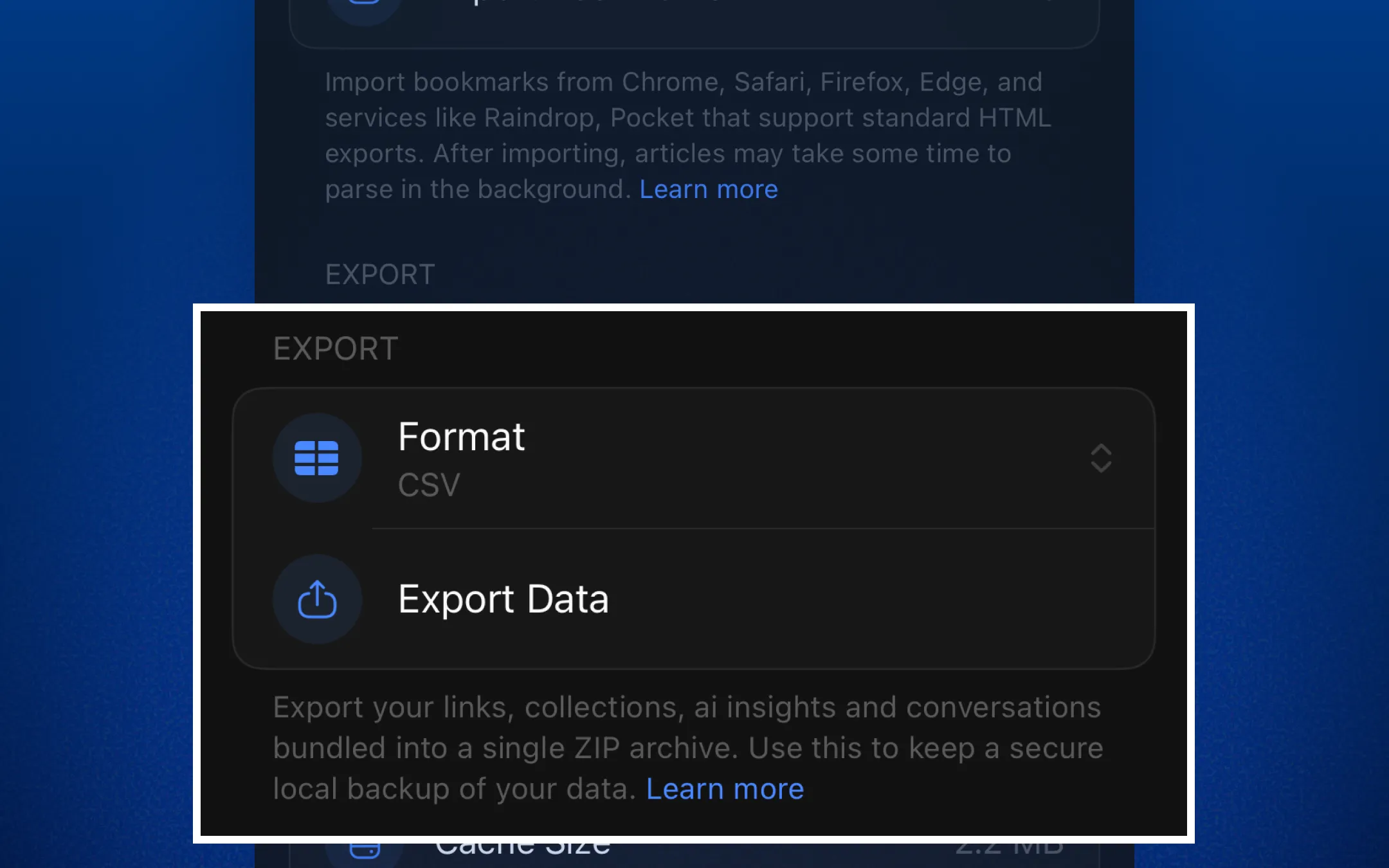
Linkwise lets you export everything you've saved - links, collections, and AI conversations - as a single ZIP file. You choose the format that works best for what you want to do with it. Use it as a backup, open it in your browser, or import it into another tool.
Your RSS subscriptions export separately, as a standard OPML file that any feed reader can
open.
What gets exported
Every export includes:
Links - URL, title, description, collection, and save date
Collections - name, description, and color tag
AI insights - all links summaries and QnA's that are extracted
Conversations - your full AI chat history with Linkwise, including all messages
Not included in the ZIP: RSS subscriptions. Those are exported on their own as an OPML file
- see Export RSS Feeds below.
Export formats
Tap the Format row to choose how your data is packaged before exporting.
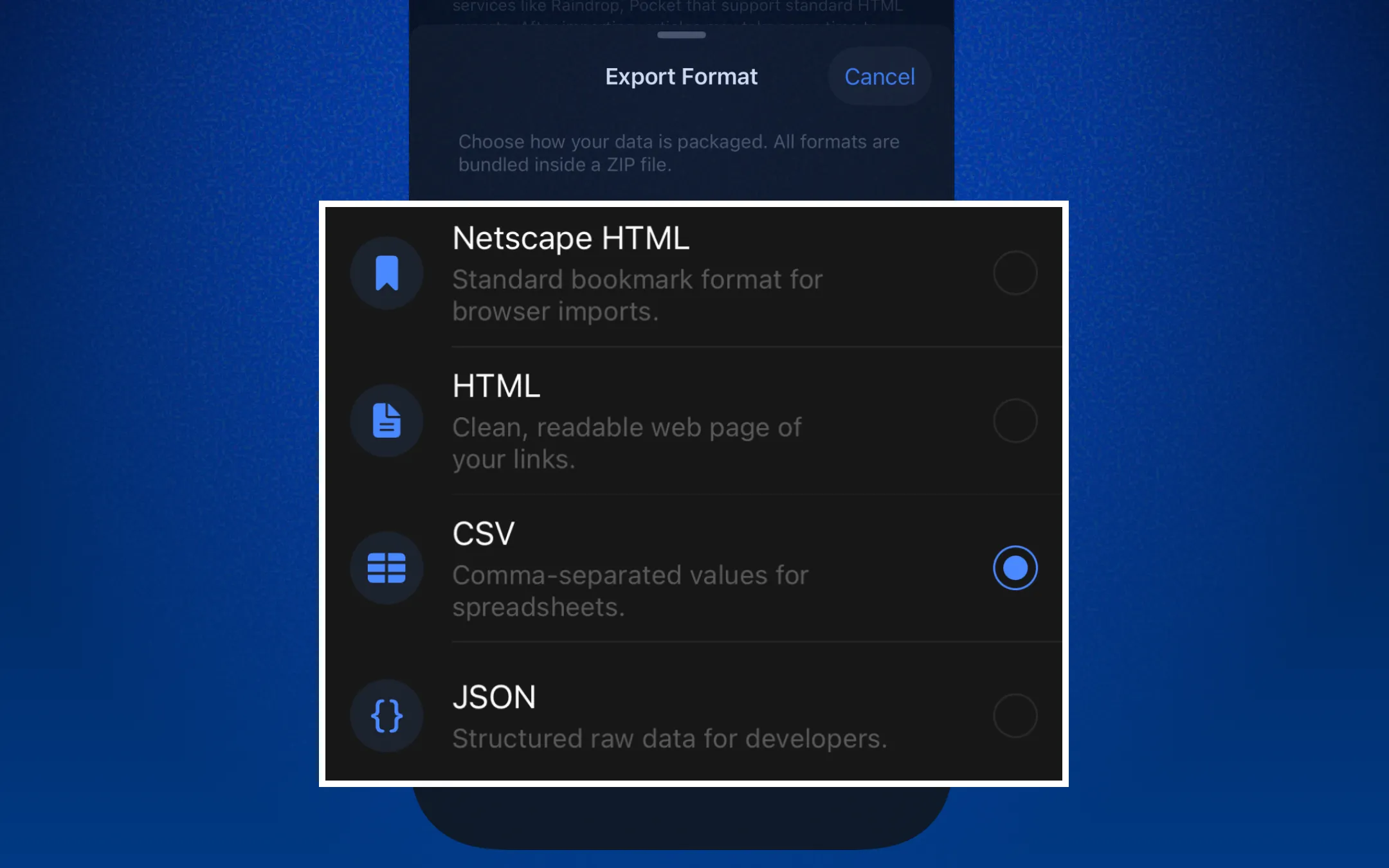
Browser Bookmarks (NetscapeHTML)
Best for importing your links directly into Chrome, Safari, Firefox, or Edge. Exports as a standard bookmarks.html file with your collections mapped to bookmark folders. Conversations are not included in this format.
Visual Archive (HTML)
Best for browsing your saved links in any web browser without needing any app. Opens as a self-contained webpage with tabs for Links, Collections, and Conversations. No internet connection required to view it.
CSV
Best for opening in Excel, Numbers, or Google Sheets. Exports links and collections as separate .csv files. Conversations are included as a .json file since they don't map cleanly to rows and columns.
JSON
Best for developers or if you plan to re-import your data into Linkwise later. Exports everything as a single structured data.json file with a summary header, full link metadata, and all conversation messages.
How to export
Open Linkwise and go to Settings → Import and Export
Under the Export section, tap the Format row and choose your preferred format
Tap Export Data
Linkwise prepares your archive in the background — this usually takes a few seconds
The share sheet appears automatically when the file is ready
Save to Files, AirDrop to your Mac, send via email, or save to iCloud Drive
The Available Export row
After a successful export, an Available Export row appears below the Export Data button. It shows the format used, the file size, and how long ago it was generated.
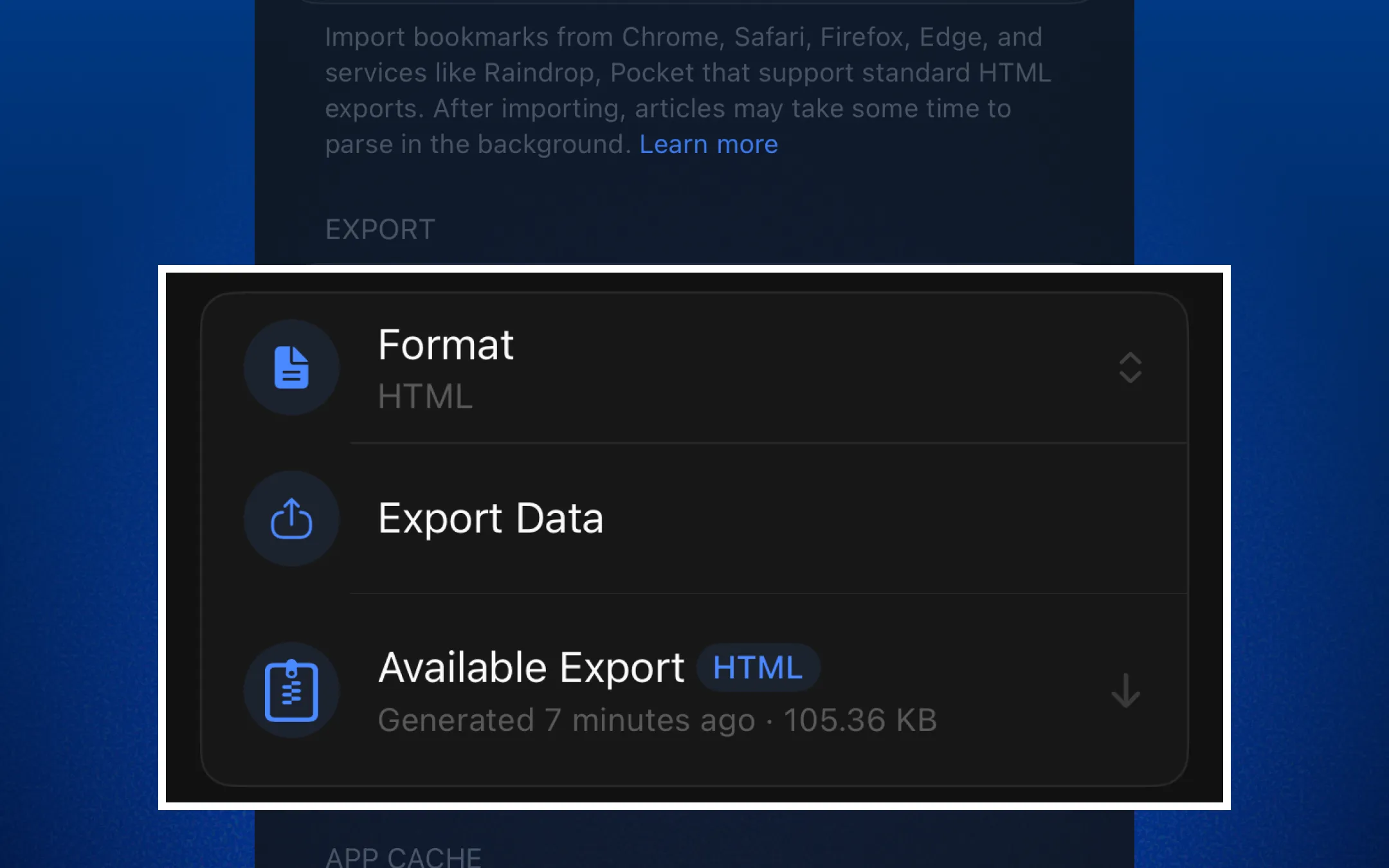
Tapping this row opens the share sheet again so you can re-share the same file without generating a new one. The file is cached locally on your device for one hour. After that it's automatically removed to save space, and the row disappears.
Export RSS Feeds (OPML)
Your subscription list exports as its own file, separate from the data archive.
Go to Settings → Import and Export
Tap Export RSS Feeds "OPML file for any feed reader"
The file is built on the spot and the share sheet opens - save it to Files, AirDrop it, or
send it wherever you like
You get a file named linkwise-feeds-YYYY-MM-DD.opml containing every feed you follow, with
its title, feed URL and site URL. It's OPML 2.0, so Feedly, Inoreader, NetNewsWire, Reeder,
Feedbin and effectively every other reader will import it as-is.
Worth knowing
No daily limit and no format picker - the file is generated on your device each time you tap
it, so it's always currentThe list is flat: Linkwise doesn't group feeds into folders, so the export has no folder
outlinesIt contains subscriptions only - not the articles from those feeds. Saved articles are in
the main data archive
Daily export limit
To keep things running smoothly for everyone, exports are limited to 3 per day per account. The counter resets every 24 hours.
The export button shows how many exports you've used today. If you've hit the limit, the button shows when the limit resets.
Changing the format counts as a new export. If you need multiple formats, plan your 3 exports accordingly — or export as JSON and convert locally.
Importing your export back into Linkwise
Browser Bookmarks (.html) exports can be reimported into Linkwise through the standard import
flow (See Import for full steps), and the OPML export can be imported straight back via Import RSS Feeds - so both
sides round-trip, whether you're moving to another app or back again.
Troubleshooting
The export button is greyed out An export is already in progress. Wait for it to complete before starting another.
"Daily limit reached" message You've used all 3 exports for today. The button shows exactly how many hours until the limit resets.
The share sheet didn't appear The export completed but the sheet may have been dismissed. Tap the Available Export row to bring it back, as long as it's within the one-hour cache window.
The ZIP file appears empty This can happen if your library has no links saved yet. Add at least one link and try again.
My browser won't import the bookmarks file Make sure you're selecting the bookmarks.html file from inside the ZIP, not the ZIP itself. Unzip the archive first, then import the file.
"You aren't subscribed to any feeds yet": the OPML export only covers RSS subscriptions. If
you haven't followed any feeds there's nothing to write - add one from Library → RSS Feeds →
Add Feed first.
Feeds are missing from the ZIP: that's expected. The data archive covers links,
collections, AI insights and conversations. Subscriptions come out through Export RSS Feeds
as a separate .opml file.
Need help?
If something isn't working, reach out via Settings → Help & Feedback in the app or email us at [email protected].