

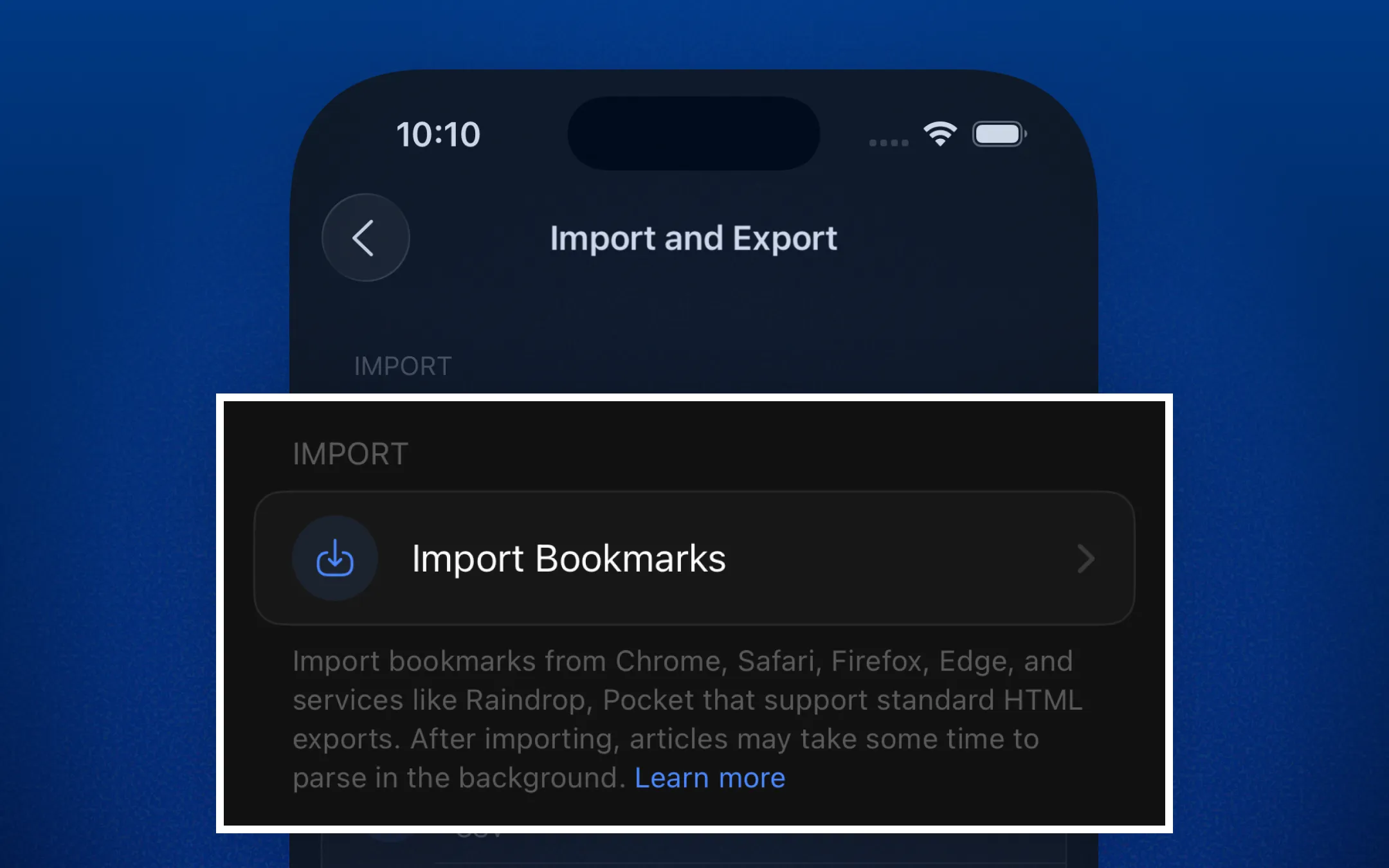
Linkwise imports bookmarks from any browser or read-later app that exports the standard HTML bookmark format - Chrome, Safari, Firefox, Edge, Arc, Brave, Raindrop, Pocket, Instapaper and similar. It also imports RSS subscriptions from an OPML file, so you can bring your whole feed reader across in one go.
Before you start
You'll need an exported bookmarks file from your browser or app. The file will have a .html extension.
Supported sources: Chrome, Safari, Firefox, Edge, Arc, Brave, Raindrop, Pocket, Instapaper, and any other app that exports standard Netscape bookmark files.
For feeds: an .opml (sometimes .xml) subscription export from your feed reader - Feedly, Inoreader, NetNewsWire, Reeder, Feedbin, The Old Reader and others all export one.
Import into Linkwise
Open Linkwise and go to Settings → Import and Export
Tap Import Bookmarks
Tap Choose File and navigate to your
.htmlbookmarks fileLinkwise will scan the file and show you a preview — total links found and any folders detected
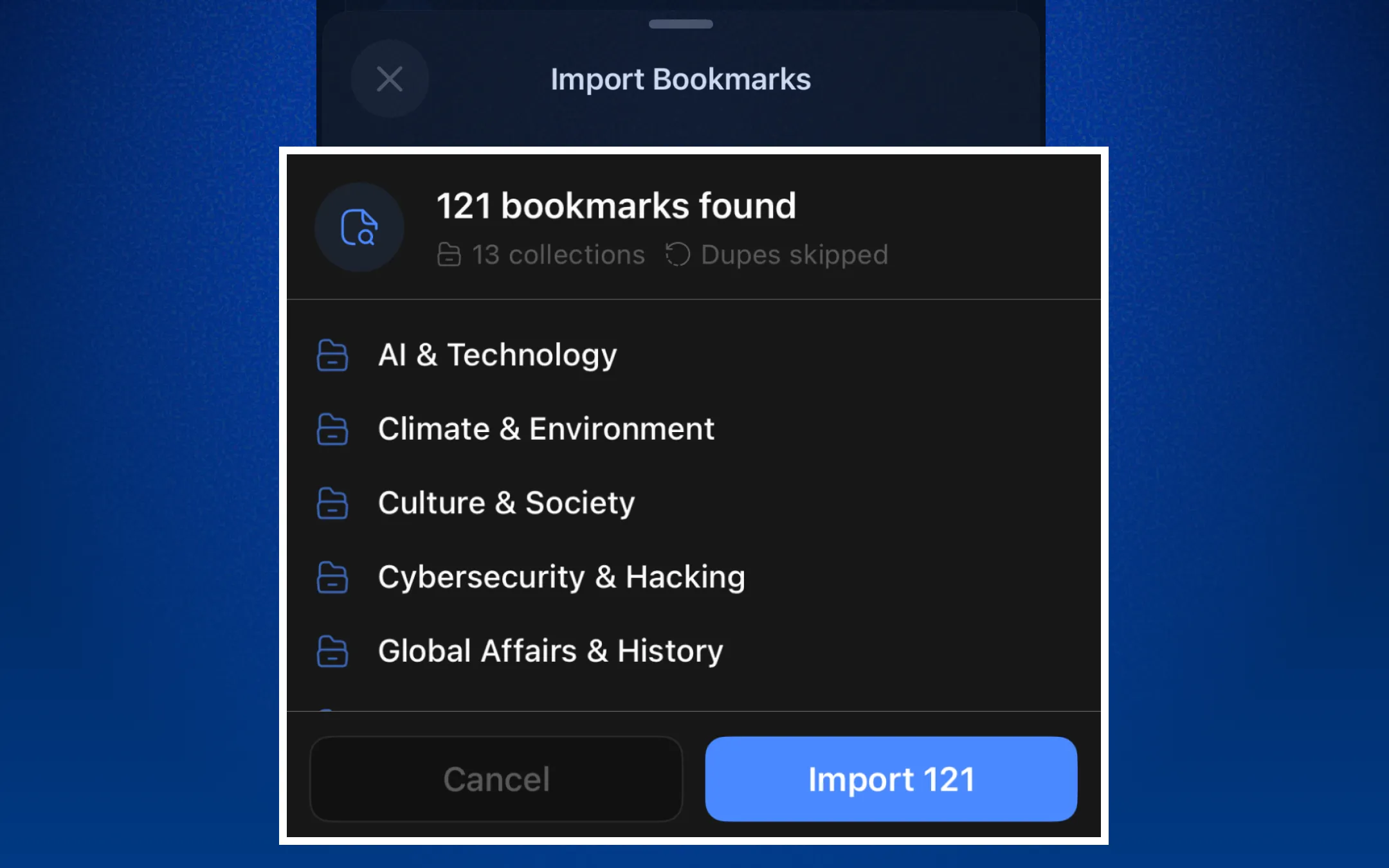
Tap Import to begin
Linkwise processes your bookmarks in the background. You'll receive a notification when the import is complete.
What happens after import
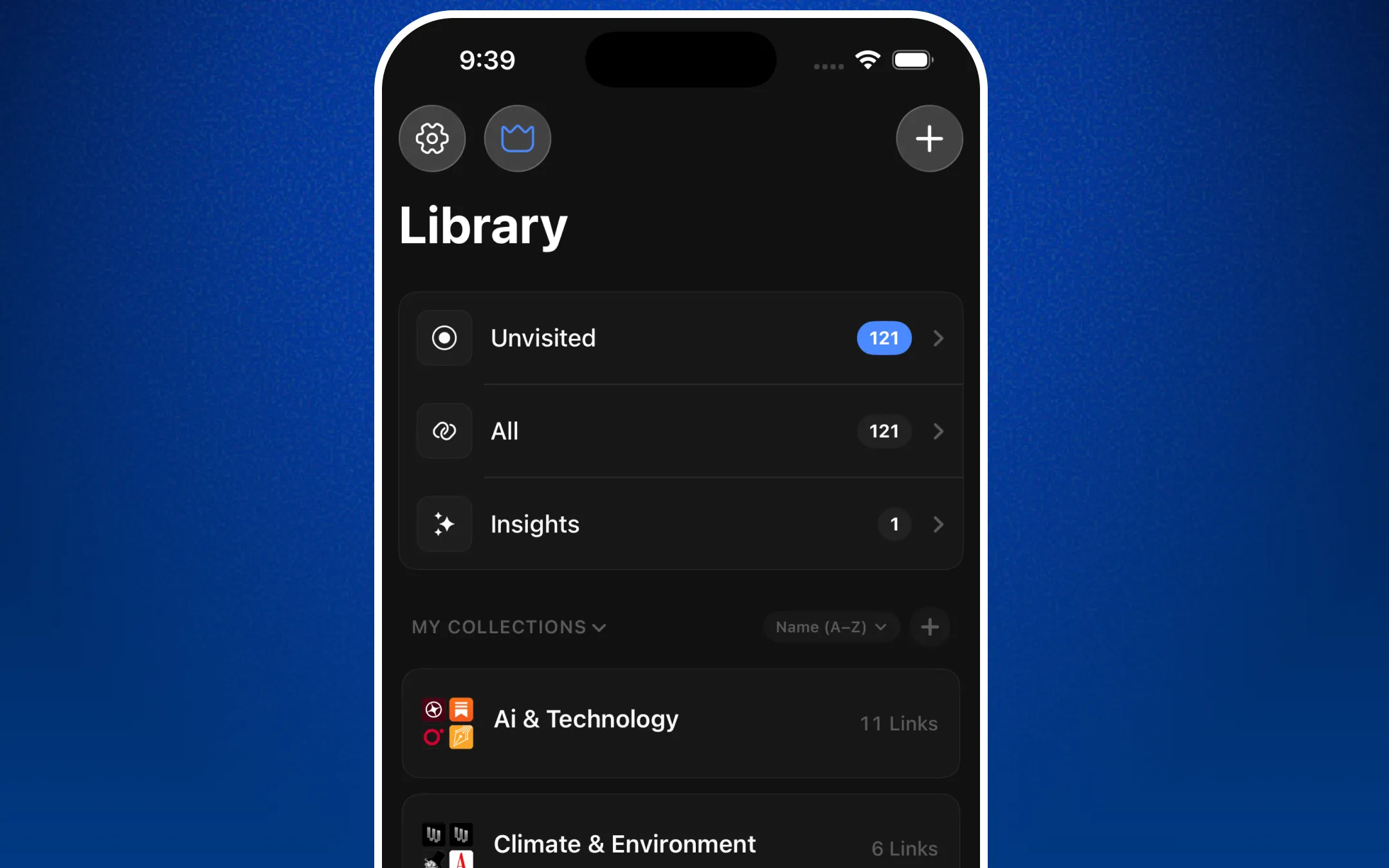
Links are saved immediately. All imported links appear in your library right away, tagged with their original folder name as a collection where possible.
AI processing happens in the background. Linkwise queues each imported link for content parsing and AI insight generation. Depending on how many links you imported, this can take a few minutes. You don't need to keep the app open.
Duplicates are skipped. If a link already exists in your library, Linkwise will skip it rather than create a duplicate. The import summary shows how many were skipped.
Folders become collections. Top-level bookmark folders from your browser are mapped to Linkwise collections. Nested sub-folders are flattened into the parent collection name.
Import is limited to PRO users as of now, Upgrade to Pro to import your full archive.
Import RSS Feeds (OPML)
Bringing your subscriptions over from another feed reader takes the same route as bookmarks,
but it's a separate flow with its own file type.
1. Export OPML from your current reader
Reader | Where to find it |
|---|---|
Feedly | Settings → Import/Export → Download OPML |
Inoreader | Preferences → Import/Export → Export subscriptions |
NetNewsWire | File → Export Subscriptions |
Reeder | Settings → the account → Export OPML |
Feedbin | Settings → Import/Export → Export |
2. Import into Linkwise
Go to Settings → Import and Export
Tap Import RSS Feeds
Tap Select OPML File and pick the file you exported
The preview shows how many feeds were found, plus the folder names from your export
Tap Subscribe to [N]
3. It finishes in the background
Subscribing happens server-side, one feed at a time — each one has to be fetched and parsed.
You can close the sheet as soon as it starts; a progress row appears under Import in
Settings showing "x of y feeds". A large list takes a few minutes, and the import survives
closing or force-quitting the app — reopen and it picks up where it left off.
4. What you get
Feeds land in Library → RSS Feeds
The two most recent articles from each feed appear straight away; everything after that
arrives on the normal refresh cycleDuplicates are skipped — a feed you already follow is never added twice
When it's done, Linkwise shows a summary: how many were added, how many you already
followed, and which ones couldn't be added (with the reason, so you can retry them by URL
via Add Feed)
A note on folders: OPML folder names are shown in the preview so you can see what's in
the file, but Linkwise keeps feeds in one flat list — folders aren't recreated as
collections. Collections are for saved links.
Limits
Plan | Pro. Free accounts can follow up to 3 feeds, added one at a time via Add Feed |
Feeds per file | 500 - anything beyond that is ignored |
Imports per day | 3, counted per account, resetting at 00:00 UTC |
At once | One feed import at a time. A bookmark import and a feed import can run together |
Bulk import - bookmarks and OPML feed lists is a Pro feature. Upgrade to Pro to bring
your full archive and your whole feed reader across.
Troubleshooting
"No links found" after selecting a file The file may not be in standard Netscape bookmark format. Try re-exporting from your browser and make sure you select HTML format, not JSON or CSV.
The import seems stuck Background processing continues even if you close the app. Wait a few minutes and check your library again. If nothing appears after 10 minutes, force-quit Linkwise and reopen it.
Some links failed to save Links that are behind a login, paywalled, or no longer accessible online may fail to parse. They're still saved as links in your library - they just won't have AI insights generated.
My folders didn't become collections Some export formats don't preserve folder structure. If your browser exports all bookmarks as a flat list, they'll appear in your main library without collection grouping.
"That doesn't look like a valid OPML file": the file isn't OPML XML. Some readers offer a
JSON or CSV export as well re-export and pick OPML. A .zip won't work either; unzip it
first and choose the .opml file inside.
"No feeds were found in that file": the OPML parsed, but nothing in it carried a feed URL.
This usually means you exported a starred/saved-articles list rather than your subscription
list.
Some feeds show as "failed": the feed URL in your export has moved or gone offline.
Linkwise tries the site URL as a fallback and looks for a current feed there, but if the site
is gone or blocks automated requests the feed can't be added. Add it manually with Add Feed
if you know the new address.
"A feed import is already in progress": only one feed import can run at a time. Wait for
the progress row in Settings to finish, then start the next one.
Progress bar isn't moving: feed imports are processed in scheduled batches, so a short
pause between updates is normal. The import continues whether or not the app is open - if
nothing has moved after 10 minutes, reopen Settings to refresh the status.
Need help?
If your import isn't working as expected, reach out via Settings → Help & Feedback in the app or email us at [email protected].