


There's a moment every knowledge worker recognizes. You open your browser with a purpose. Maybe you need to research a competitor. Maybe you saw a thread that linked to a fascinating deep-dive on distributed systems. Maybe someone on Slack dropped an article about a new privacy regulation that could affect your product roadmap.
Ten minutes later, you're fourteen tabs deep. The original article is somewhere in there, buried under a YouTube recommendation, a Twitter rabbit hole, and a newsletter you half-read in your inbox before getting distracted. The purpose you started with? Gone.
This is the modern reading crisis. It's not that we don't read enough. We read constantly. We're drowning in text. The problem is that almost none of it sticks, almost none of it is organized, and almost none of it is retrievable when we actually need it.
I built Linkwise because I was tired of losing the things I read. And with the latest update, I've gone much deeper into solving this problem than I originally imagined.
The Reading Stack Is Broken
Let me describe a workflow that probably sounds familiar.
You save articles to your browser bookmarks. You have a "Read Later" folder that now has 400+ items in it, most of which you'll never revisit. Some articles live in your email inbox because a newsletter delivered them. Others are screenshots on your phone because you saw them on Instagram or Reddit and didn't know where else to put them. A few are open tabs you refuse to close because closing them feels like losing the information forever.
This is what I call the "scattered reading problem." Your reading inputs come from a dozen different sources, but they all end up in different containers with zero connection between them. Your browser bookmarks don't talk to your email. Your email doesn't talk to your notes app. And none of them help you understand what you saved or why you saved it.
The reading stack most people use isn't really a stack at all. It's a junk drawer.
What "Reading With Intent" Actually Means
Reading with intent is a practice, not a tool. But the right tool makes the practice effortless instead of exhausting.
Here's what intentional reading looks like in practice:
You save things from anywhere, to one place. Whether it's a link from Safari, a URL from Slack, an article from Reddit, or a newsletter that hit your inbox, everything goes into one library. Not scattered across five apps. One.
You add context at the moment of saving. Why did you save this? A quick note, a tag, a color code. Future-you will thank present-you. The difference between a useful bookmark and a useless one is context, and context fades fast.
You actually read what you save. This sounds obvious, but most read-later systems fail here because the reading experience itself is terrible. Cluttered websites, pop-ups, cookie banners, autoplaying videos. The reading environment matters.
You can retrieve anything instantly. Not "I think I saved something about that... let me check three apps." Instant. Full-text search across everything you've ever saved, including your notes and AI conversations about those links.
You extract and retain the insights. Reading without retention is entertainment. Reading with retention is a compounding knowledge advantage.
This is the philosophy that drives every feature in Linkwise. Let me walk through what's new and how each piece connects.
RSS Feeds: Your Reading, Your Rules
Social media algorithms decide what you see. RSS puts that power back in your hands.
With the latest Linkwise update, you can now subscribe to RSS feeds directly inside the app. This means you can follow your favorite blogs, news sources, and publications without relying on Twitter's algorithm, Google's recommendations, or whatever LinkedIn thinks you should care about today.
Why does this matter? Because the content you choose to follow is fundamentally different from the content that's pushed to you. Algorithms optimize for engagement, which means they optimize for outrage, novelty, and distraction. RSS optimizes for your interests.
Here's how it works in Linkwise: you add a feed URL, and new articles appear in your library automatically. No algorithmic sorting. No ads injected between articles. Just the content you chose, in chronological order, ready for you to read in the Linkwise Reader whenever you want.
The beauty of combining RSS with everything else in Linkwise is that these articles aren't siloed. They live alongside your manually saved links, your newsletter content, and everything else. You can tag them, organize them into collections, chat with them using AI, and search across all of it. RSS feeds aren't a separate feature; they're another input into your unified reading library.
Email Newsletters: Inbox Zero for Your Reading Life
Newsletters are one of the best content formats on the internet right now. Independent writers, researchers, and industry experts are doing incredible work through platforms like Substack, Beehiiv, and Ghost. The problem? They all deliver to your email inbox, which is the worst possible place for long-form reading.
Your inbox is a task list. Every email competes for attention with meeting invitations, Jira notifications, Slack summaries, and that message from your manager you've been putting off replying to. Reading a 2,000-word deep-dive about AI regulation in the same interface where you handle expense reports is a recipe for distraction.
Linkwise now supports email newsletters as a first-class content type. You get a dedicated Linkwise email address. Subscribe to your newsletters using that address, and they flow directly into your Linkwise library. They're automatically extracted, cleaned up, and presented in the distraction-free Linkwise Reader, just like any other saved article.
No more newsletters clogging your inbox. No more "I'll read that later" starring in Gmail that turns into "I'll never read that." Your newsletters live with the rest of your reading content, searchable, taggable, and ready to be consumed with the same focus you'd give a saved article.
App Shortcuts: Save at the Speed of Thought
One of the biggest friction points with any save-for-later system is the saving itself. If it takes more than two seconds to capture a link, you won't do it consistently. And inconsistent saving means gaps in your library, which means you'll default back to the junk drawer approach.
With the new App Shortcuts support, saving a link to Linkwise is now faster than it's ever been. Set up shortcuts that integrate with Siri, the Shortcuts app, or the iOS Share Sheet. See something interesting? One tap. It's saved, tagged, and waiting for you.
This is the kind of feature that sounds small but transforms your daily workflow. The difference between "I'll save this later" (you won't) and instantly capturing it is the difference between a growing knowledge library and an ever-growing pile of lost bookmarks.
Editable Link Metadata: Your Links, Your Context
Here's something that's always bothered me about bookmark managers: they pull metadata automatically, and whatever they pull is what you're stuck with.
A page title is written for SEO, not for you. The auto-generated description might be useless. The thumbnail might be wrong or missing entirely. And when you're scanning your library three months later trying to find that specific article about database sharding strategies, an SEO-optimized title like "10 Things Every Developer Should Know About Databases" tells you absolutely nothing.
Linkwise now lets you edit link metadata directly. Change the title to something meaningful to you. Update the description with your own summary of why you saved it. Fix the thumbnail. Add the context that makes your library yours, not a copy of someone else's SEO strategy.
This pairs perfectly with the custom collection icons feature. Your collections can now have distinct visual identities, making it faster to scan and navigate your library visually. It's a small design detail, but it compounds over time as your library grows.
Auto Read on Open: Reduce the Decision Tax
There's a concept in behavioral design called "decision tax." Every decision you have to make, no matter how small, costs you a tiny bit of mental energy. Over the course of a day, these micro-decisions add up and erode your ability to focus on the things that actually matter.
When you tap a link in most apps, you land on the raw webpage. Then you have to decide: Do I read it here? Do I switch to reader mode? Do I save it first? Each decision is a tiny speed bump between you and the content.
Auto Read on Open eliminates that tax entirely. When enabled, tapping a link in Linkwise opens it directly in the Linkwise Reader, distraction-free, with your preferred font, theme, and layout settings already applied. No decision. No friction. Just reading.
It's the kind of feature that feels invisible when it's working, which is exactly the point.
The Reader: Where Reading Actually Happens
Let me talk about the Linkwise Reader itself, because it's the heart of the whole experience.
Most websites are not designed for reading. They're designed for advertising. Content is a vehicle for banner ads, pop-ups, newsletter prompts, and "recommended articles" sidebars that are really just more ad inventory. The actual text you came to read is fighting for screen space with everything else on the page.
The Linkwise Reader strips all of that away. What you get is clean text, properly formatted, with your choice of fonts, themes, and spacing. It's the reading experience that the web should have been but never was.
A few things that make it particularly powerful:
Article outlines. For long-form articles, Linkwise extracts the heading structure and presents it as a navigable outline. You can scan the structure of a 5,000-word article in seconds and jump directly to the section you care about. I recently shipped article table content extraction too, so structured data within articles is preserved and readable.
Offline reading. Saved articles are automatically downloaded for offline access. Read on the train, on a plane, or anywhere you don't have signal. Your content is always there.
Reading progress. The app remembers exactly where you stopped. Come back to an article three days later and pick up right where you left off. No scrolling, no searching for your place.
AI Chat: The Part Where Everything Clicks
Here's where Linkwise goes from "good bookmark manager" to "actually changes how you work with information."
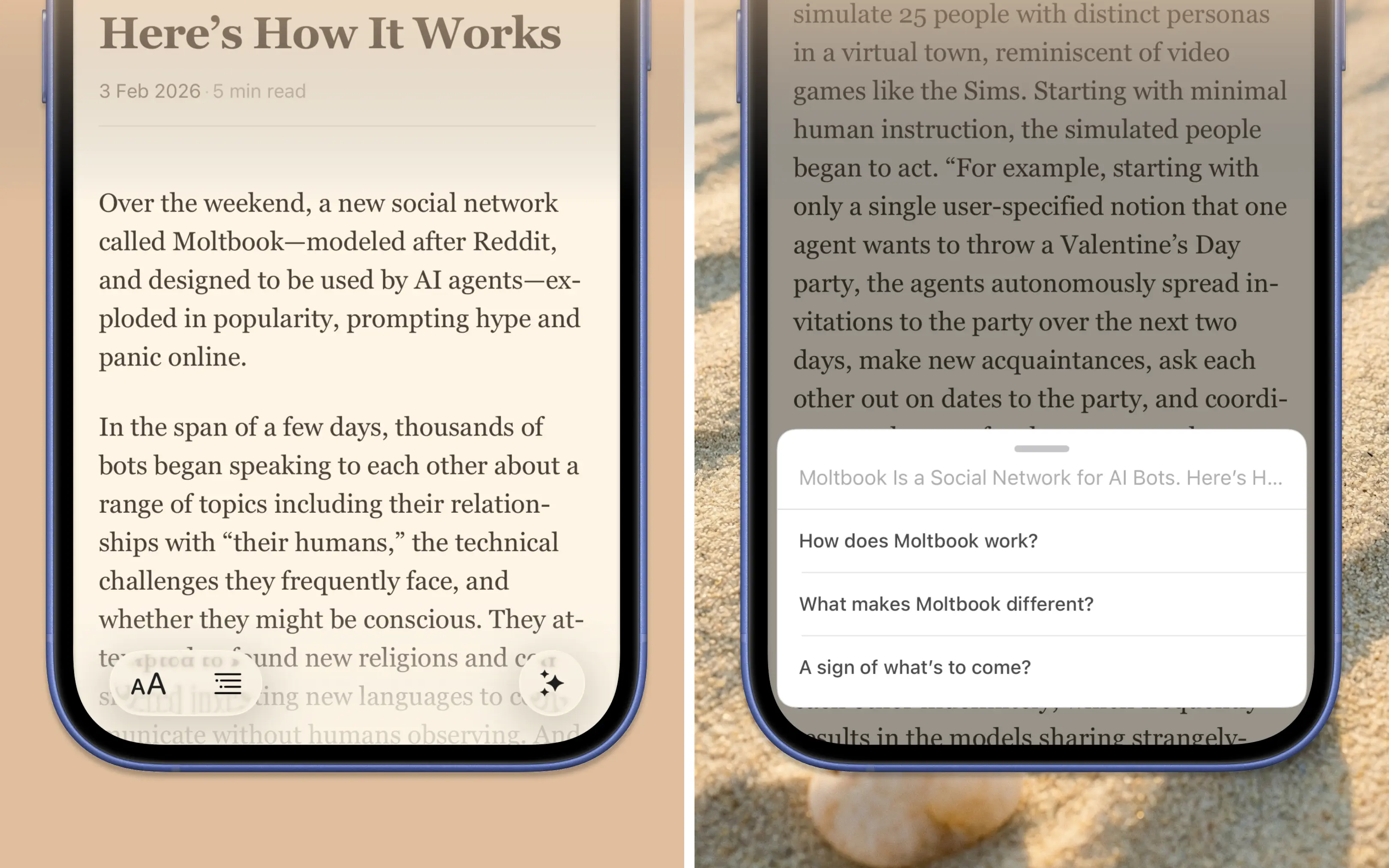
Every link you save can become an AI conversation. Not a generic chatbot conversation, but a conversation grounded in the specific content of that article or webpage. Ask questions about the article. Get a summary. Extract the key arguments. Compare claims across multiple saved links in the same collection.
This is what "Chat With Your Links" means in practice. You're not asking a general-purpose AI a general-purpose question. You're pointing AI at your own curated research and saying "help me understand this."
A few examples of how I use this myself:
When I save a technical article about a new iOS API, I'll chat with it to extract the specific migration steps I need, without reading through the author's three paragraphs of preamble about their personal history with the framework.
When I'm researching competitors, I'll save their landing pages and blog posts to a collection, then ask the AI to compare their positioning and identify gaps.
When I save a long newsletter about market trends, I'll ask for the three most actionable insights instead of re-reading the whole thing.
The AI conversations are searchable, too. So three months from now, when you vaguely remember asking Claude about that database article, you can find the exact conversation and pick up where you left off.
Home Screen Widgets: Your Library at a Glance
The best reading habit is the one that's visible. If your saved articles are buried three taps deep inside an app, you'll forget about them. If they're on your Home Screen, you'll see them every time you unlock your phone.
Linkwise widgets put your reading front and center. See your most recent saves, access your favorite links, or display highlight cards from articles you've read. The widgets are configurable, so you choose what matters most to you.
I spent a lot of time getting the typography and layout right for these widgets across different sizes. The goal is that a glance at your Home Screen gives you enough context to think "right, I wanted to read that" and then a single tap takes you straight into the Linkwise Reader.
Shared Collections: Reading as a Team Sport
Knowledge work isn't solo. If you're researching a topic for your team, you shouldn't have to copy-paste links into a Slack channel and hope people click them.
With Shared Collections, you can curate a set of links around a topic and share the entire collection with others, either through the Linkwise app or via a web link. Your teammates see the same organized, tagged, annotated library you built. They can read articles in the same clean reader experience. It turns your personal research into a team resource.
The Compound Effect of One Place
Every feature I've described has value on its own. RSS is useful. Newsletters in your library are useful. AI chat is useful. Widgets are useful.
But the real power is in having all of these things in one place. When your RSS feeds, saved links, newsletters, and AI conversations all live in the same searchable, organized library, something interesting happens: your knowledge starts compounding.
You save an article today. Three weeks later, a newsletter arrives on a related topic. You search your library and find both. You create a collection grouping them together. You ask the AI to synthesize the key themes across both pieces. You've just done in five minutes what would have taken thirty minutes of tab-switching and re-reading in the old junk-drawer approach.
This compound effect is why "just use browser bookmarks" or "just use Notes" doesn't work. Those tools save individual items. Linkwise builds a connected knowledge library that gets more valuable the more you use it.
Building in Public: Why I Write This Blog
I'm a solo developer building Linkwise alongside a full-time job. I share these updates because I believe in building in public and because I want the people who use Linkwise to understand the thinking behind every feature.
Every pixel in this app has a reason. Every feature solves a real problem I've experienced myself. When I added RSS support, it was because I was frustrated that my RSS reader and my bookmark manager were two separate apps. When I added newsletter support, it was because my inbox was becoming unmanageable. When I added AI chat, it was because I was tired of re-reading entire articles to find one specific detail.
If any of this resonates, I'd love for you to try Linkwise. It's available on the App Store, and you can learn more at linkwise.app.
And if you have thoughts, feature requests, or want to share how you're using the app, reach out. I read and respond to everything, because when you're building something for people who care about reading, the least you can do is read what they write back.